
External sharing is one of the most powerful collaboration features in Microsoft 365 — but also one of the most misunderstood and risky if misconfigured. When done correctly, it balances security and collaboration, allowing users to share with trusted external parties while protecting sensitive data.
This step-by-step guide walks you through how to configure and manage external sharing in SharePoint Online and OneDrive, following Microsoft 365 best practices.
Understand External Sharing Levels
Microsoft 365 offers four main levels of external sharing. Before configuring anything, decide the level of openness appropriate for your organization.
| Level | Description | Use Case |
|---|---|---|
| Anyone | Users can share links with anyone (no sign-in required). | Public documents, or non-sensitive content. |
| New and Existing Guests | Only authenticated external users with a Microsoft account or work/school account can access shared content. | Common for vendor, partner, and client collaboration. |
| Existing Guests Only | Only users already in your Azure AD (guest accounts) can access shared items. | Highly controlled environments where admins pre-invite guests. |
| Only People in Your Organization | No external sharing is allowed. | Environments with strict compliance or data residency rules. |
Configure Organization-Level Sharing Settings
All external sharing starts at the organization (tenant) level. Site-level settings cannot be more permissive than the organization setting.
Steps:
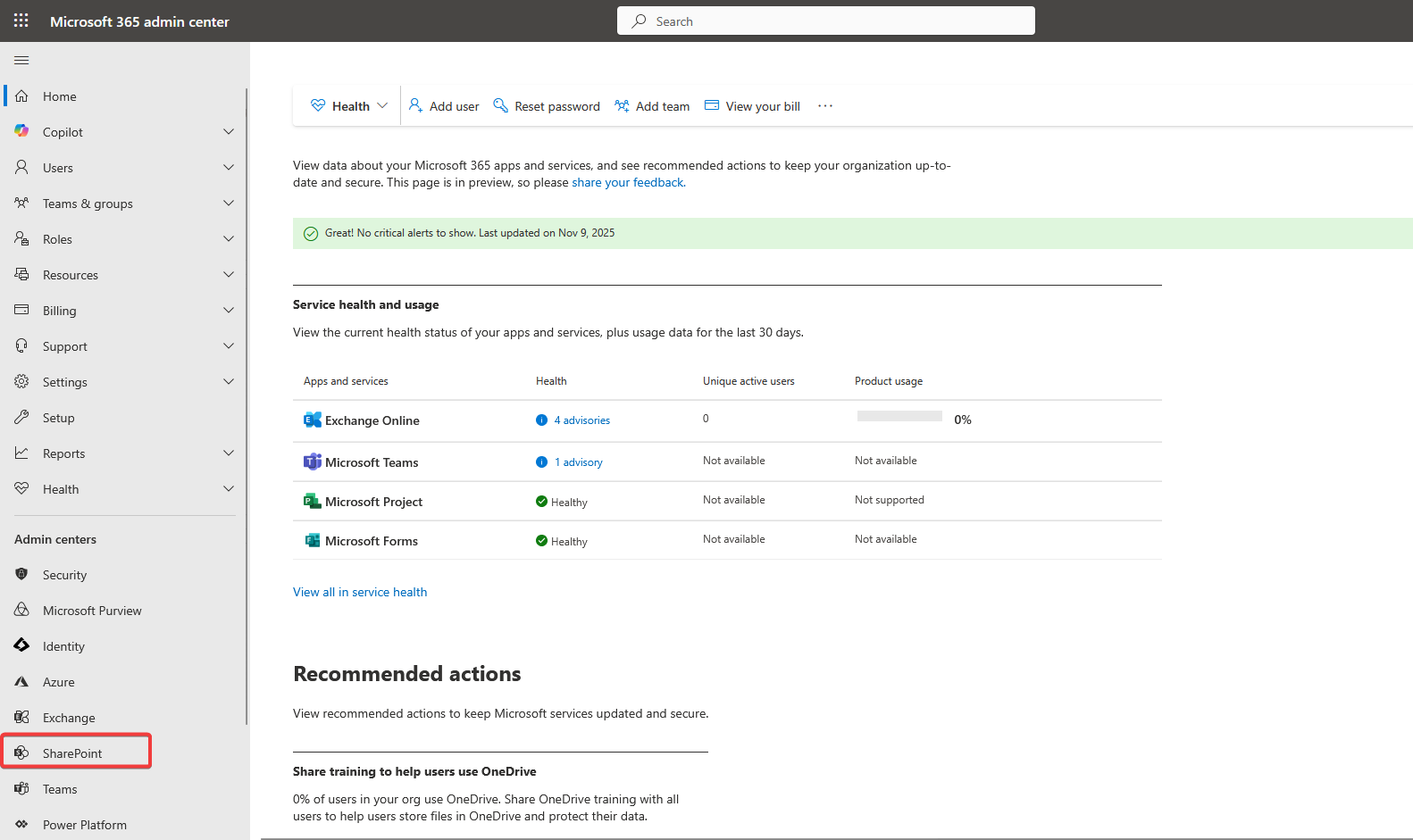
- Go to the Microsoft 365 Admin Center → SharePoint Admin Center.
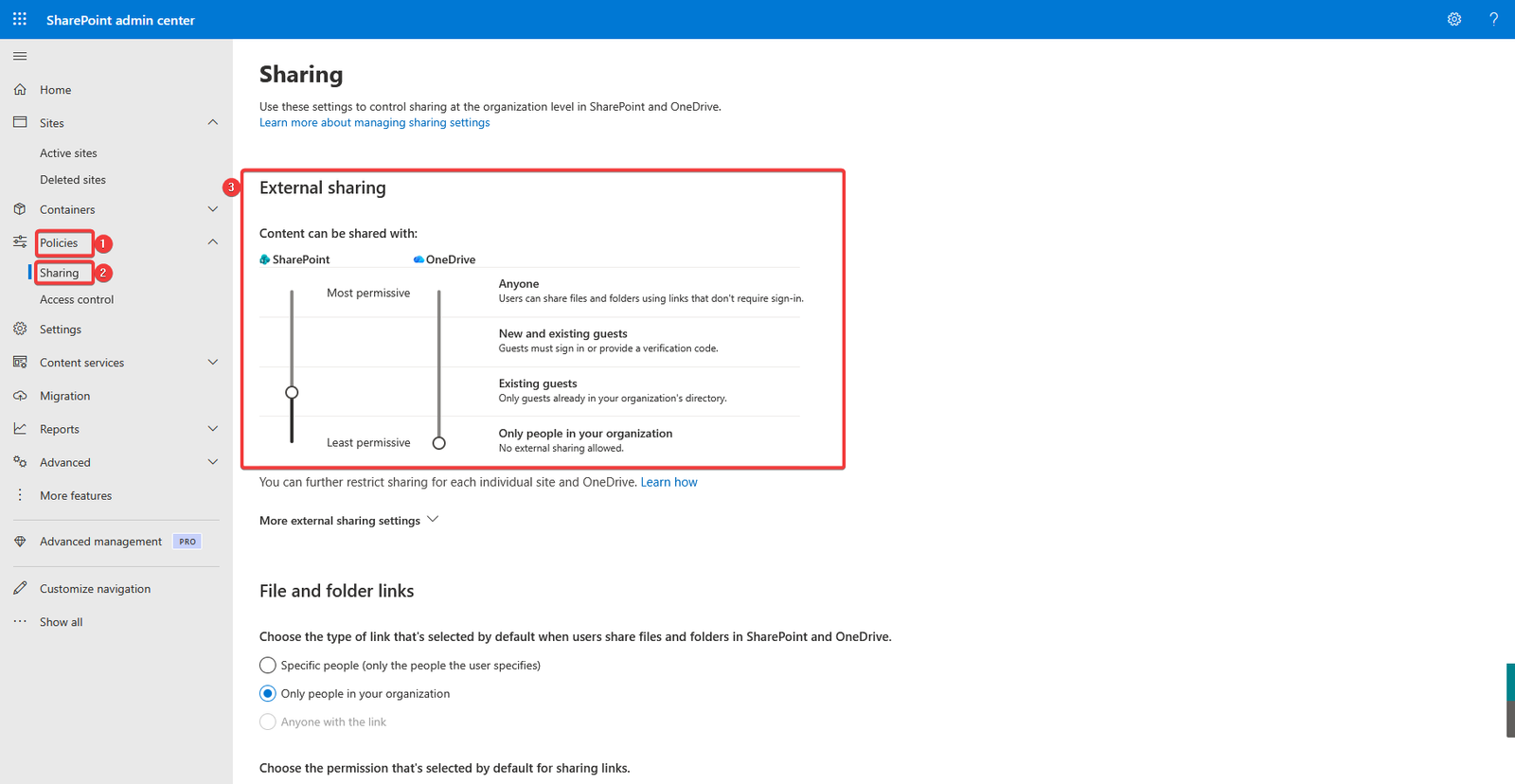
- In the left menu, click Policies → Sharing.
- Under External Sharing, you’ll see sliders for:
- SharePoint
- OneDrive
- Choose the most appropriate sharing level:
- If you set SharePoint to New and existing guests, OneDrive can be the same or more restrictive, but not more permissive.
- Toggle whether users can share with:
- Anyone
- New and existing guests
- Existing guests only
- Only people in your organization
- Click Save when done.
Tip: Start restrictively, then gradually relax sharing if needed. Most organizations begin with “New and existing guests”.
Configure Site-Level External Sharing
Different sites (especially project or departmental ones) may require different levels of sharing.
Steps:
- In the SharePoint Admin Center, go to Sites → Active Sites.
- Select a site → Settings → External file sharing.
- Choose a level equal to or more restrictive than the organization-level setting.
- Click Save.
Best Practice:
- Use site sensitivity or labels (via Microsoft Purview Information Protection) to automatically control whether external sharing is allowed.
- For example, a site labeled Confidential could automatically disable external sharing.
Fine-Tune Link Settings
Within sharing, link settings control how users share files and folders.
Options
- Anyone links – No authentication required (use carefully).
- People in your organization – Internal only.
- Specific people – Most secure external sharing (only invited guests can access).
Configure defaults:
- In the SharePoint Admin Center → Select Policies → Sharing.
- Under File and folder links, set the default link type (e.g., Only people in your organization).
- Set default permissions (View or Edit).
Use PowerShell to Manage and Audit External Sharing
Connect to SharePoint Online:
Install-Module Microsoft.Online.SharePoint.PowerShell -Force
Connect-SPOService -Url https://<tenant>-admin.sharepoint.com
View current organization settings:
Get-SPOTenant | Select SharingCapability
SharingCapability values:
- 0 = Disabled (Only people in your organization)
- 1 = ExistingExternalUserSharingOnly (Existing guests)
- 2 = ExternalUserSharingOnly (New and existing guests)
- 3 = ExternalUserAndGuestSharing (Anyone)
Set organization-level policy:
For example to set organization-level sharing policy to “Only people in your organization” you’ll use the command below:
Set-SPOTenant -SharingCapability Disabled
Set site-level policy:
Set-SPOSite -Identity https://<tenant>.sharepoint.com/sites/ProjectX -SharingCapability ExternalUserSharingOnly
Note: You can’t configure a site’s sharing capability to be less restrictive than the sharing level defined at the tenant level. If you attempt to do so, SharePoint will display an error.
For Example
Suppose your tenant-level sharing setting is configured as:
- Existing guests (ExistingExternalUserSharingOnly)
But you try to configure a specific OneDrive or SharePoint site to allow:
- ExternalUserSharingOnly (New and existing guests)
You can’t configure a site’s sharing capability to be less restrictive than the tenant-level sharing policy. If you try, you’ll receive an error such as:

To resolve this, you must either:
- Increase the site-level sharing restriction setting (Set the site to the same or more restrictive level as the tenant) or
- Reduce the tenant-level sharing restriction setting (if allowed by your organization’s policies permit it).
Audit who has shared externally:
Get-SPOExternalUser | Select DisplayName, Email, InvitedBy, WhenCreated | Export-Csv "c:/temp/ExternalUsers.csv" -NoTypeInformation
Manage Guest Users in Entra ID (Azure AD)
External users are stored as Guest Accounts in Microsoft Entra ID (formerly Azure AD).
Steps:
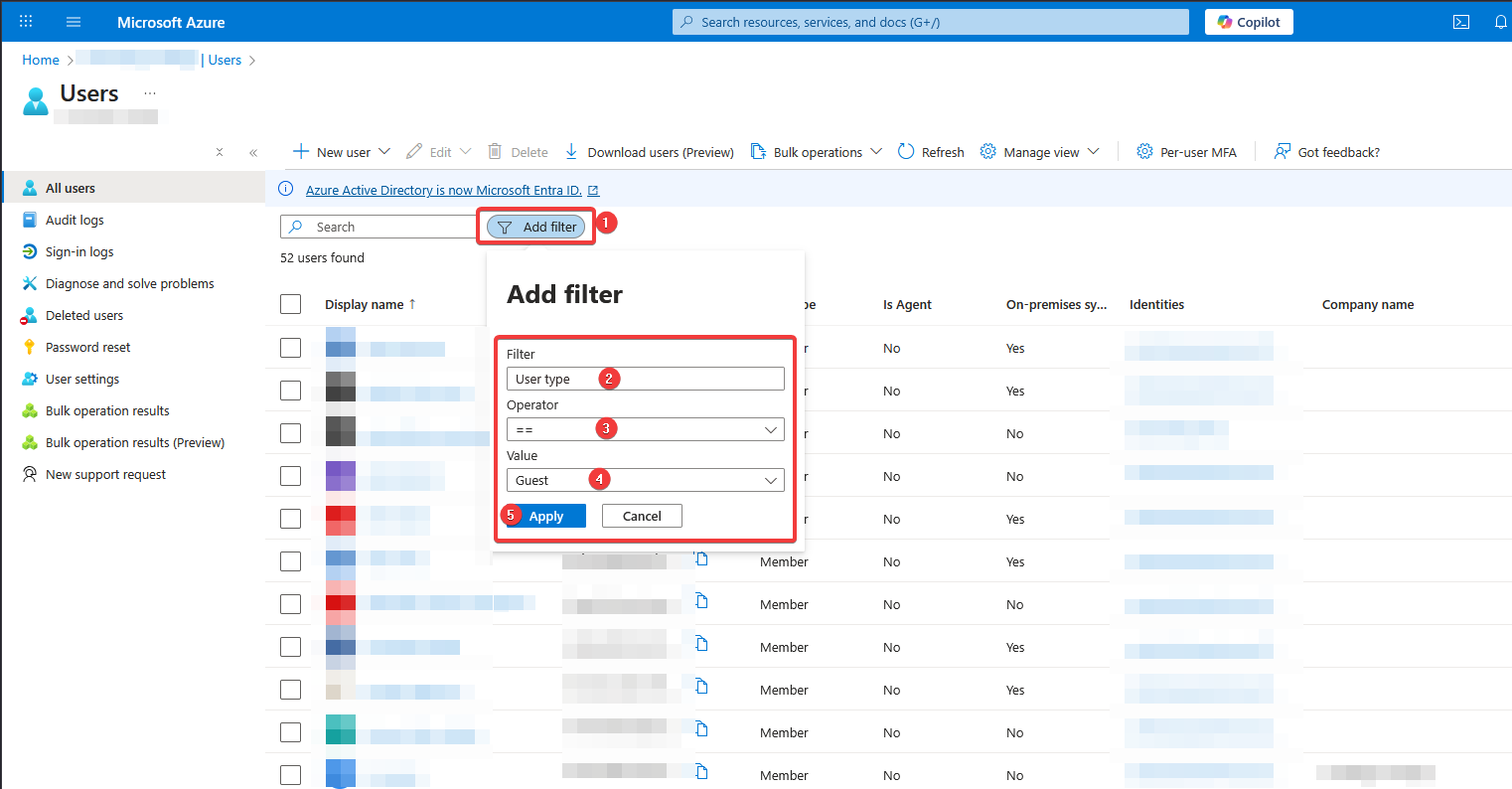
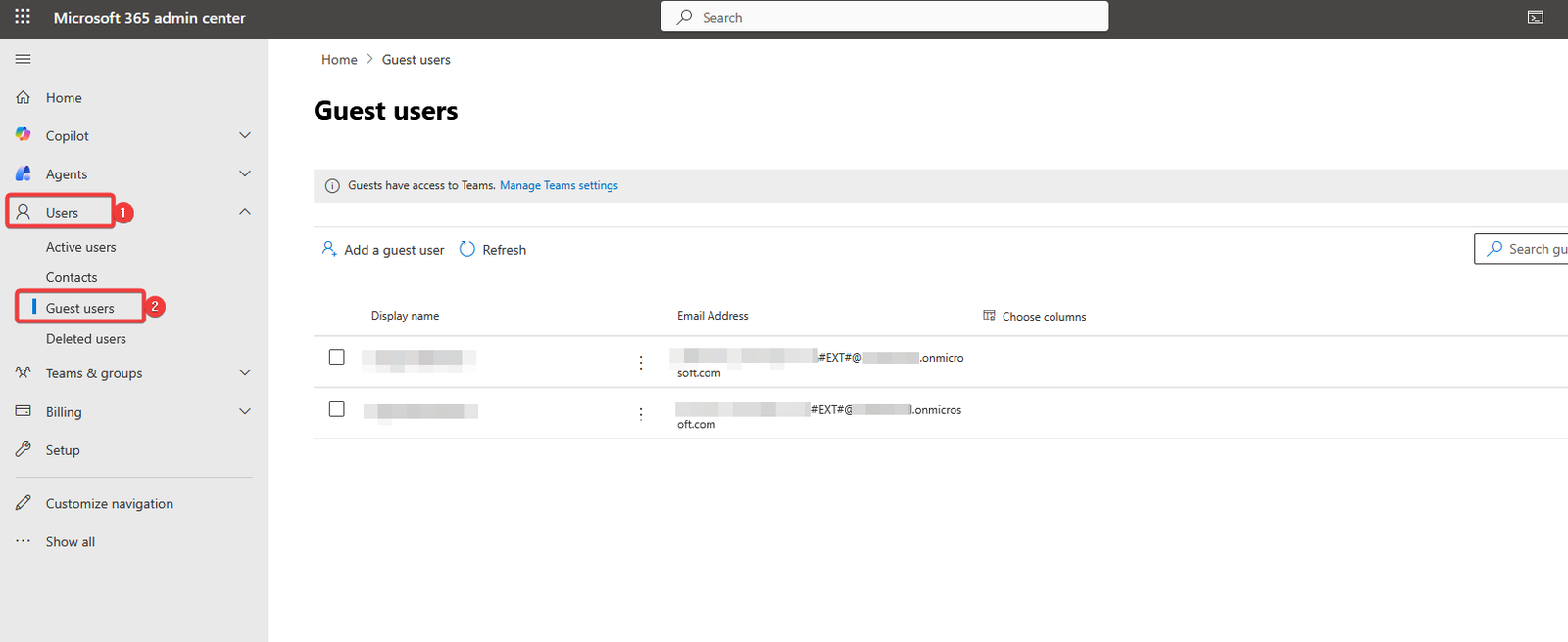
- Go to the Entra Admin Center → Users → To locate guest users in Microsoft Entra ID (formerly Azure AD), use the Microsoft Entra admin center and filter the “All users” list by User type == Guest, or use the dedicated “Guest users” view in the Microsoft 365 Admin Center for simpler lists
Connect with scopes: Run the Connect-MgGraph cmdlet and specify the required permissions (scopes)
- Review who has access. To do that follow the steps below:
- Using Powershell: You can use the Find-MgGraphPermission and Find-MgGraphCommand cmdlets to determine which scopes are needed for specific tasks.
- To check who has guest access we can use the “AuditLog.Read.All” scope
- Using Powershell: You can use the Find-MgGraphPermission and Find-MgGraphCommand cmdlets to determine which scopes are needed for specific tasks.
Connect-MgGraph -Scopes "AuditLog.Read.All"
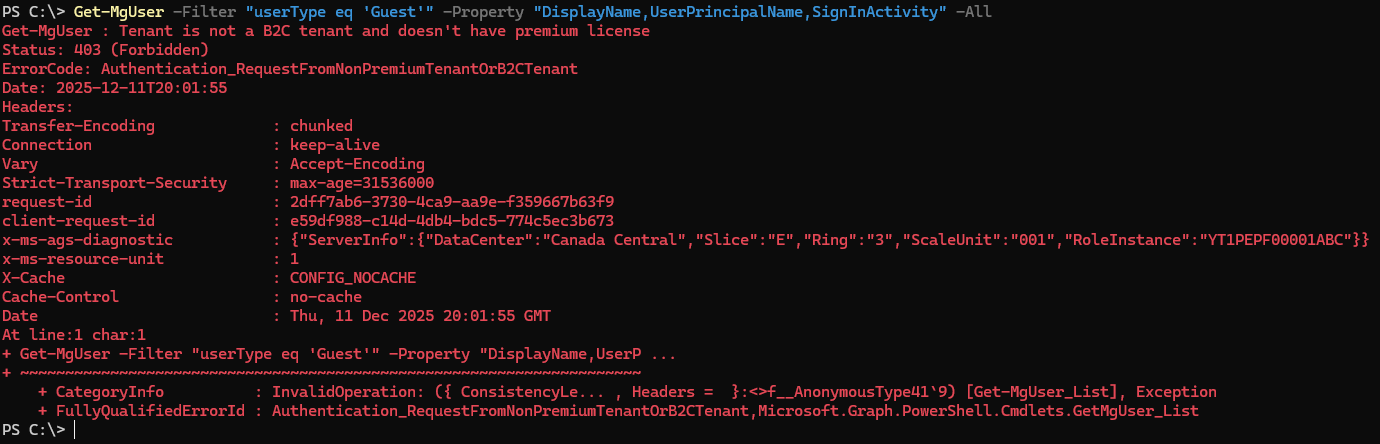
Get-MgUser -Filter "userType eq 'Guest'" -Property "DisplayName,UserPrincipalName,SignInActivity" -All
- Remove stale guest accounts:
Get-MgUser -Filter "userType eq 'Guest'" | Where-Object {$_.LastSignInDate -lt (Get-Date).AddMonths(-3)} | Remove-MgUserNote: To run the above commands, make sure that the tenant has an Entra ID Premium P1 or P2 license. If you don’t have any of these licenses you’ll get an error similar to the one below:
Review and Maintain Your Sharing Posture Regularly
- Use the following command to run reports:
Get-SPOExternalUser | Measure-Object
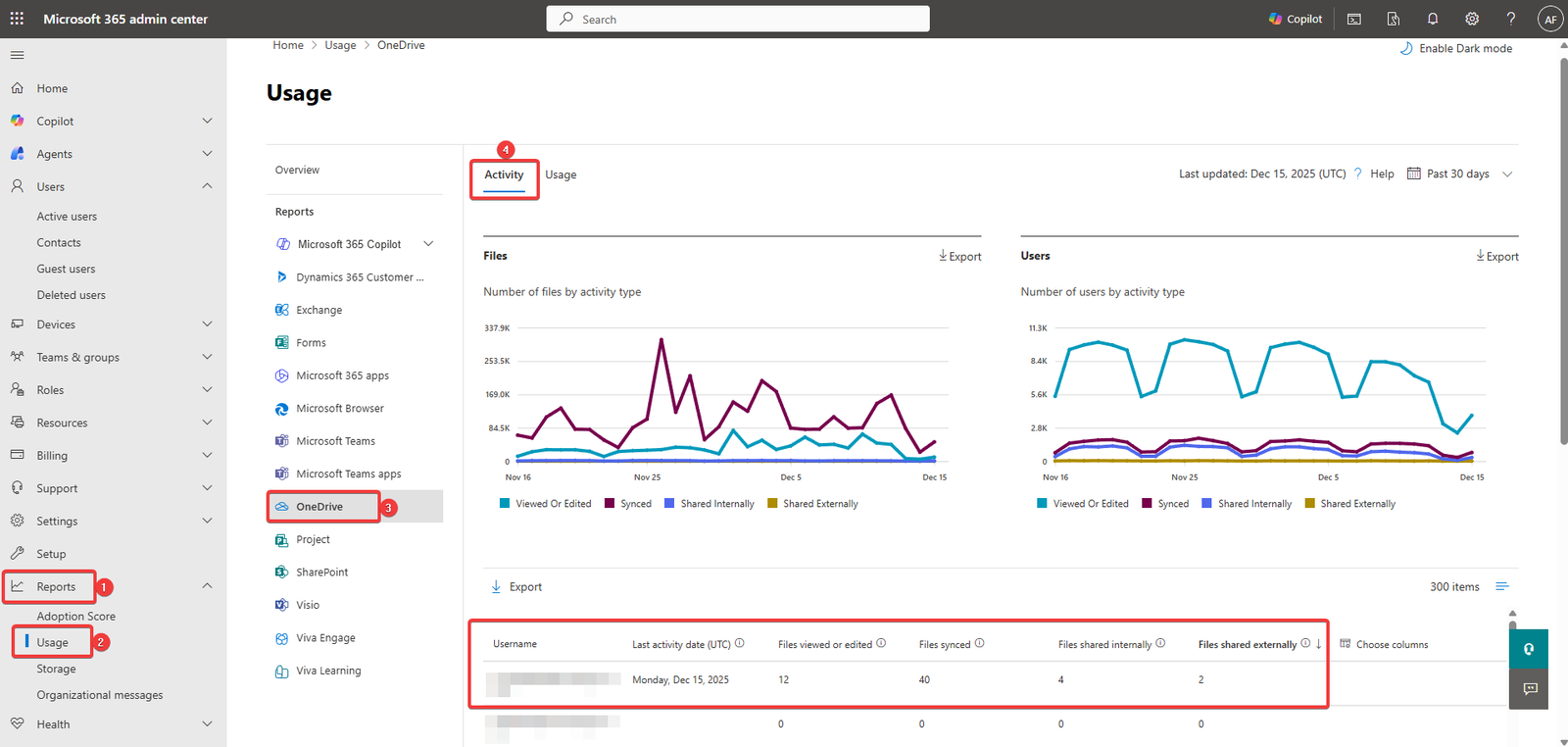
- Use Microsoft 365 Reports
- Go to Microsoft 365 Admin Center → Reports → Usage → OneDrive → Activity to see external sharing activity.
Best Practices
- Start restrictive, open up as business needs justify.
- Use Specific people links by default.
- Enable access expiration for guest links.
- Regularly audit guest accounts and sharing activity.
- Use Sensitivity Labels and Conditional Access for high-value sites.